
Answer
Change a product price
Use Edit price on the saved product. We recommend a fixed dollar markup because it makes the item cost, intended profit, and resulting Sales price easy to compare.
Open the product, choose Tasks… → Edit price, select Fixed price markup ($), enter the fixed dollar profit you want to add above the displayed item cost, and compare the resulting Sales price with the product and its audience. The $8 shown in our screenshots is an example, not a required markup.
Open Edit price on the saved product
- Open the correct store and choose Products.
- Open the product you want to price.
- Choose Tasks…, then Edit price.
Edit price appears lower in the Tasks menu. Add nested product is a different action.
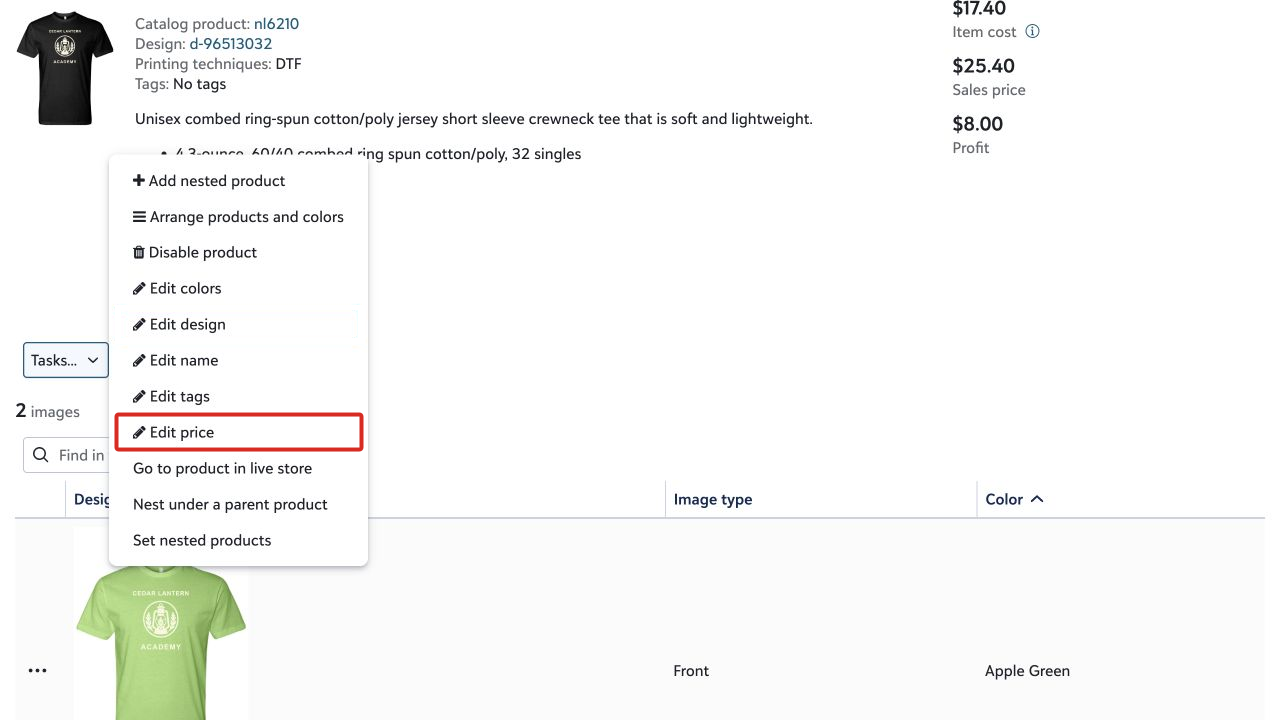
Choose a Sales price that fits the product and audience
Start with the displayed item cost. Decide on the fixed dollar profit you want the product to generate, choose Fixed price markup ($), and enter that amount. The dialog adds it to the item cost and calculates the Sales price—what the shopper will pay.
Then compare the result with the item and the people who will buy it. Does the Sales price make sense for this product’s type and quality? Is it a reasonable fit for this audience? If not, adjust the markup and review the result again. This is a decision framework, not a prescribed margin.
The screenshots use an $8 fixed markup as an example. It is not a required markup or a pricing benchmark. If the item or decoration cost changes later, review the Sales price again.
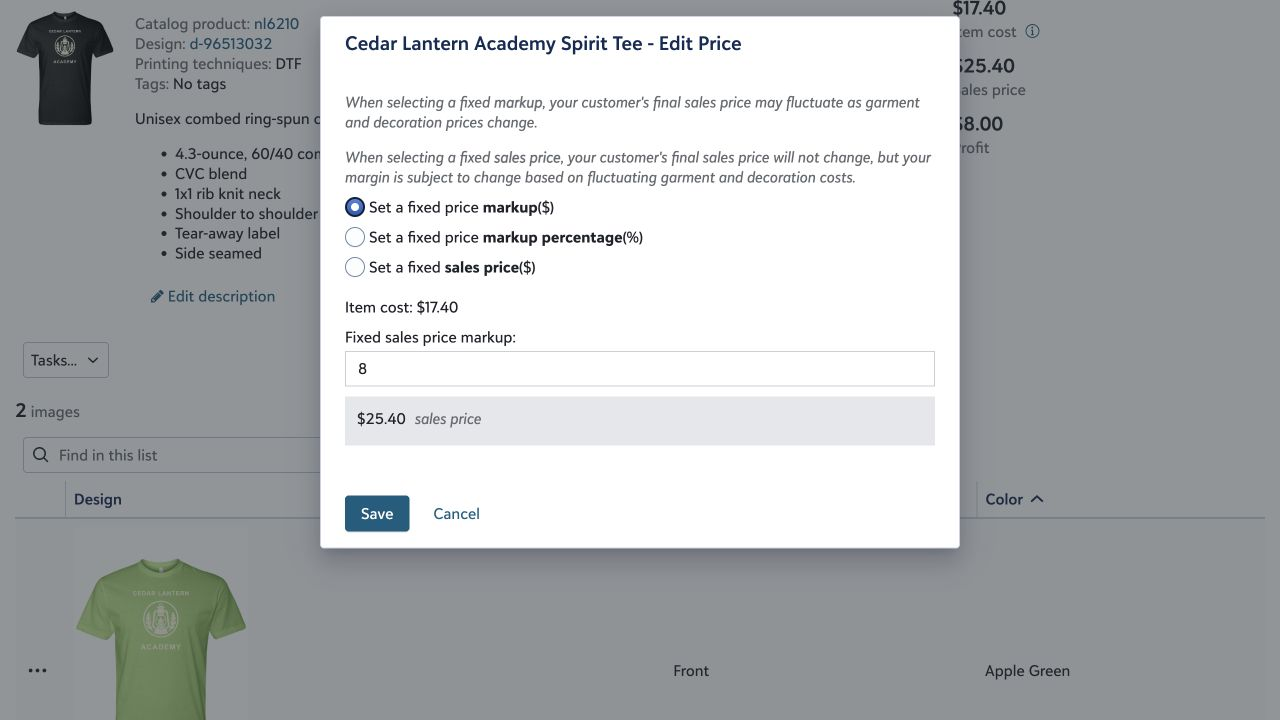
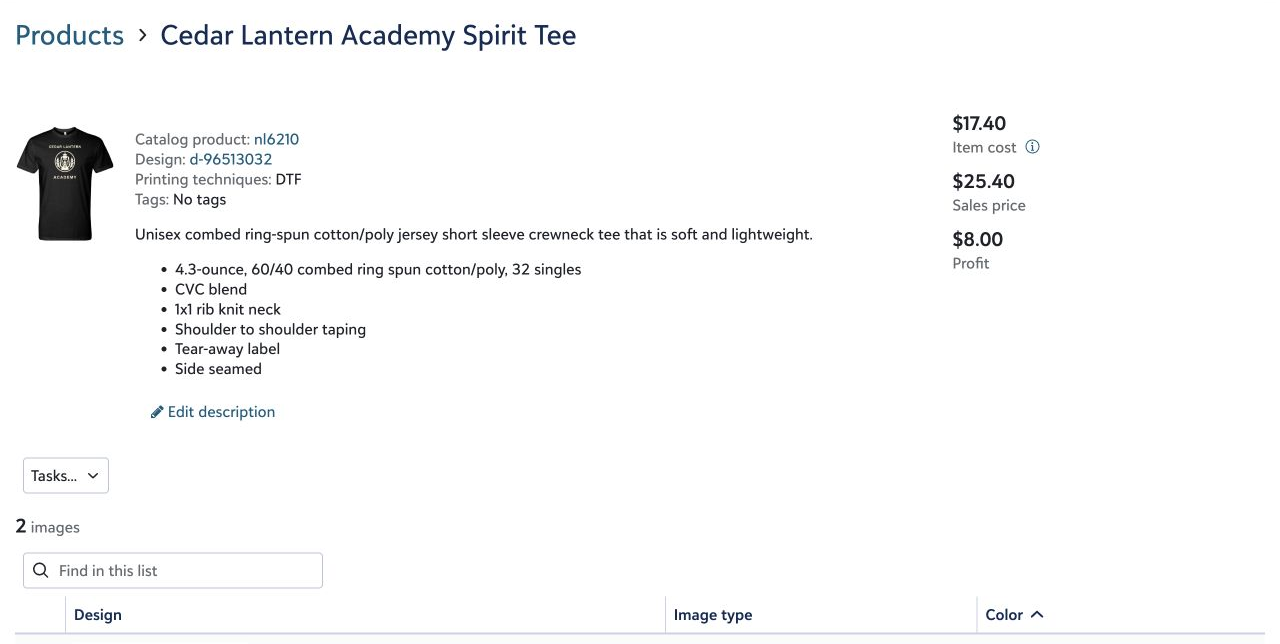
Confirm the result before sharing the store
After you save, the product should show the new Sales price and a positive Profit. If the shopper price is not what you intended, reopen Edit price and change the markup.
Last reviewed August 10, 2026.