
Fix a problem
A product is not showing in the store
The product usually still exists. Check the store, saved product, status, and public view before rebuilding anything.
Make sure you opened the correct store, confirm the product appears on that store’s Products page and is not disabled, then reopen the storefront and reload once. Only check category assignment if you deliberately set up categories later.
Check the store and product first
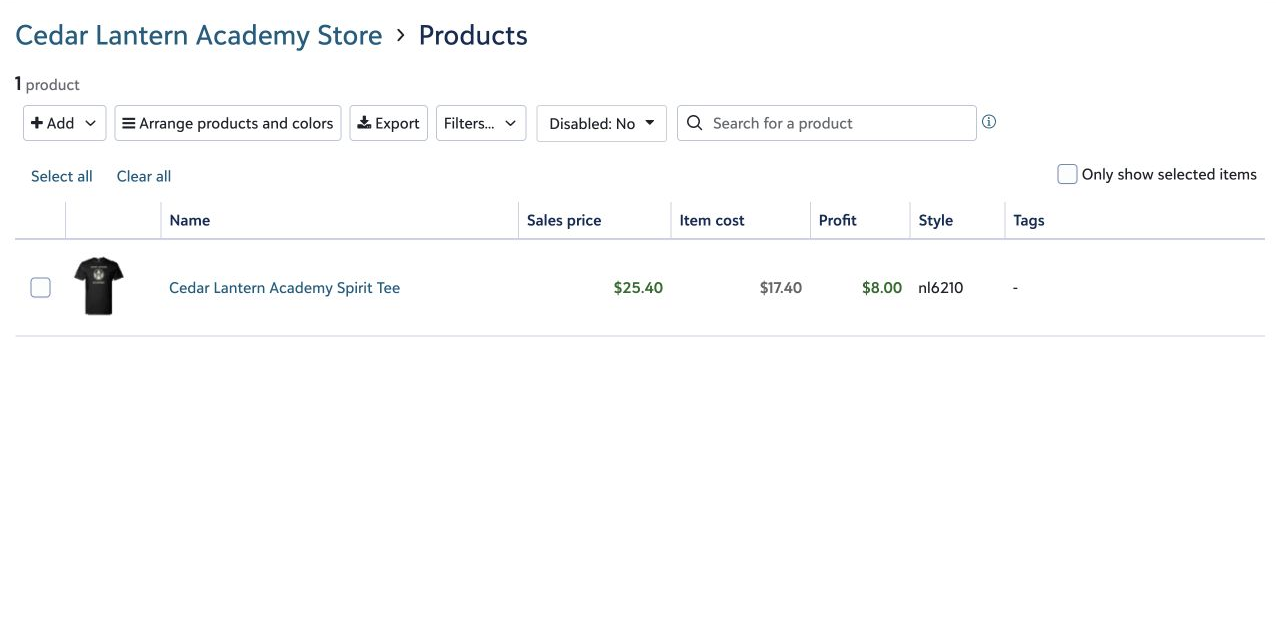
- Open the correct store and choose Products.
- Confirm the saved product appears there.
- Open its Tasks menu and make sure the product is not disabled.
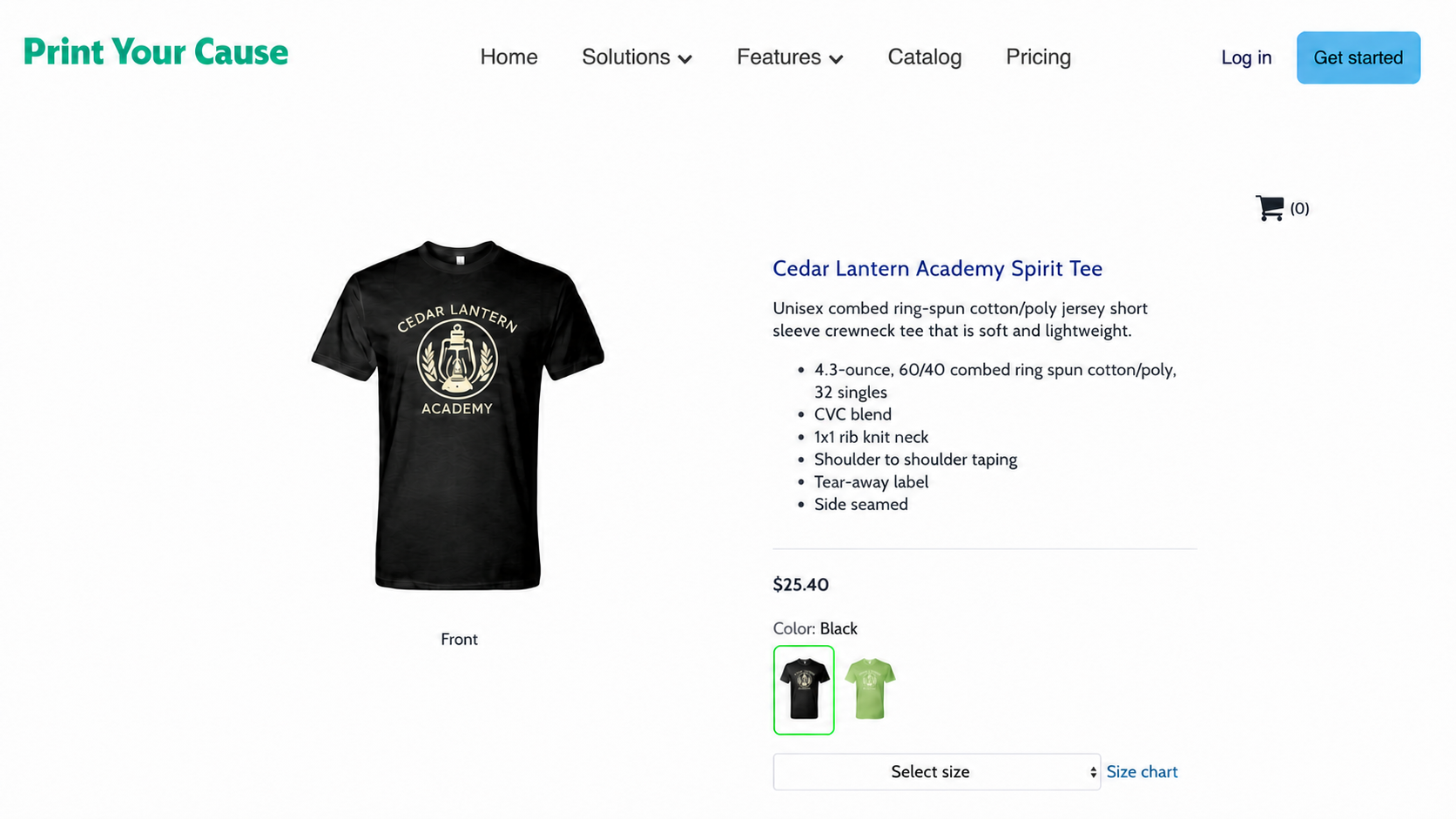
- Open the public storefront and reload once.
Do not rebuild the product yet. A duplicate will not correct a wrong-store, disabled-product, or storefront problem.
Open the customer view again
Use the store’s Storefront link, reload once, and check the main product list. If the product is visible but ordering is unavailable, that is a store-launch issue rather than a product-visibility issue.
If you chose to organize a larger store with categories after building its products, check the product’s category assignment only after these basic checks.
If it is still missing, send both views
Contact us with the account name, store name, product name, public store URL, and screenshots of both the Products page and the storefront. Tell us whether the whole product is missing or only a color or size is unavailable.
Last reviewed August 10, 2026.